Netvibes CloudView Configuration
Connector Configuration
To push items into Netvibes CloudView, you first have to register the connector within your Netvibes CloudView instance.
First, navigate to the Netvibes CloudView Admin Console of your instance under http://<CLOUDVIEW_INSTANCE_HOST>:10001/admin/#home where CLOUDVIEW_INSTANCE_HOST is the Host of your Netvibes CloudView instance.
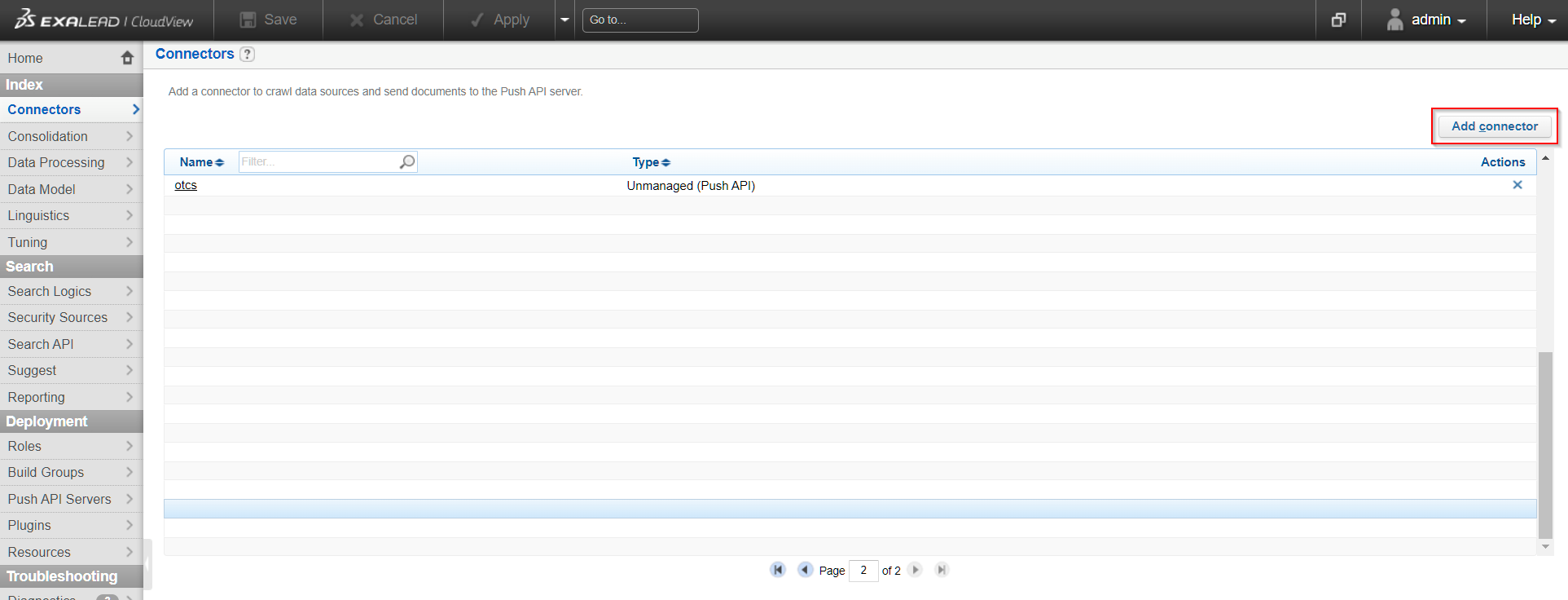
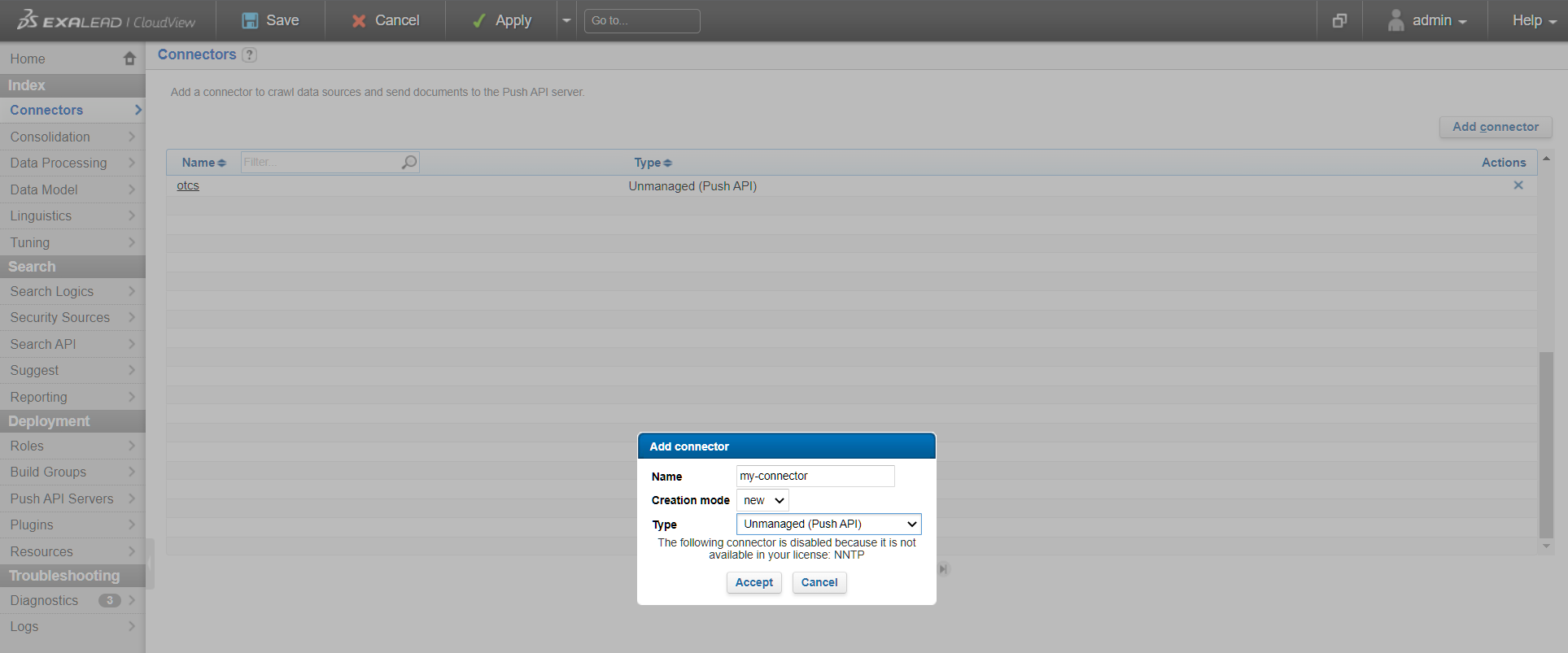
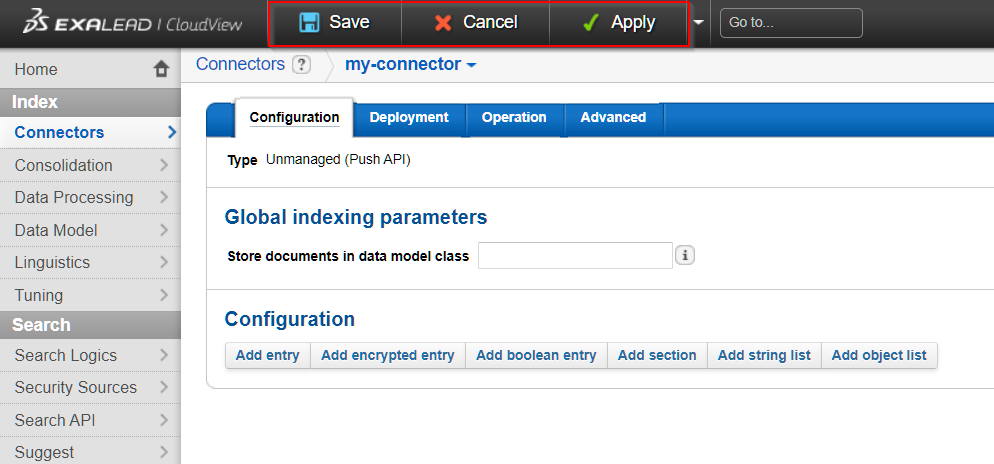
From this point on you could already push items into Netvibes CloudView. Most likely, you will want to set up a Security Source before you proceed though.
Security Source Configuration
A security source is necessary to provide Netvibes CloudView with security information and distinguish between who can and can’t see an item within Netvibes CloudView. Netvibes CloudView offers different options for Security Sources, as for example a Microsoft Active Directory Security Source. For more information on that, please refer to your Netvibes CloudView documentation.
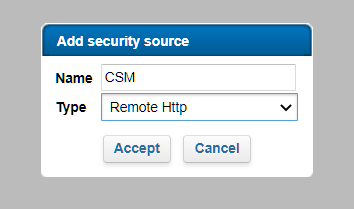
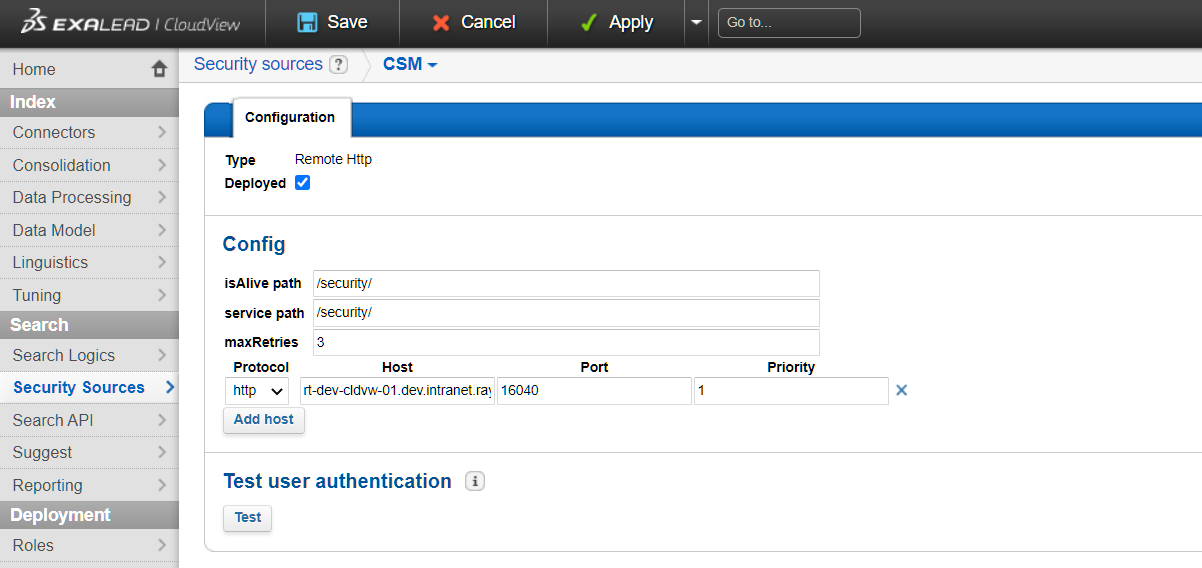
Alternatively, the connector generates security tokens in the form of remote:<ID> which can be used in conjunction with a Remote HTTP Security Source.
To start, navigate to Security Sources under Search on the left sidebar.
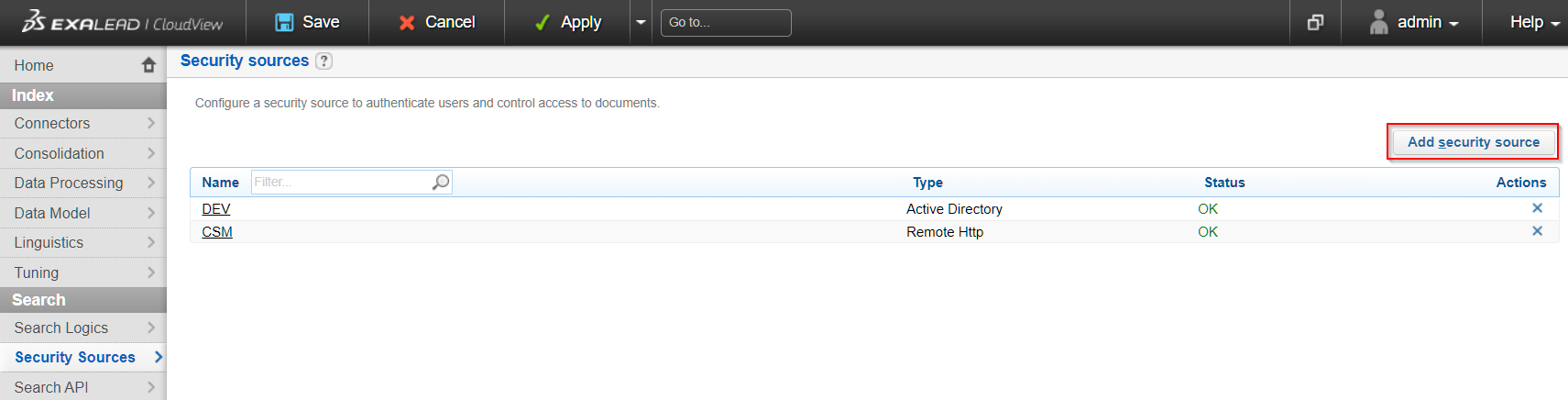
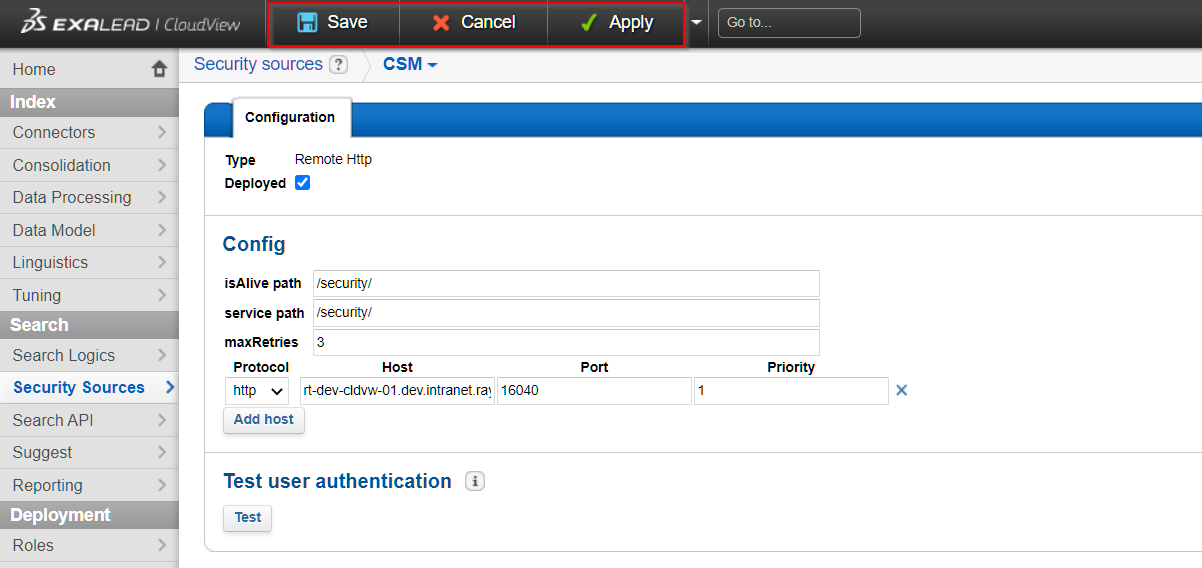
Remote HTTP Security Source
| The connection to a Remote HTTP security source is an unsecured HTTP request. Therefore, it is not recommended to employ any remote security sources for password validation. Instead, use remote security sources in combination with an Active Directory Security Source that does the authentication. In this case, remote security source will only be asked to provide ACLs for a given username. For this, Active Directory must be the first security source configured in the Mashup-UI. Further, authenticate to FIRST must be chosen |